Setting Up Email Webhooks – A Developer's Guide

Guides Setting Up Email Webhooks – A Developer's Guide · 1 min read 4 sections
1

How to setup Email webhooks

This is a guide to setting up email webhooks using Hexamail POP3 Downloader

Let's break the guide into some easy steps:

2

Installing

Please consult the guide for setting up Hexamail POP3 Downloader on Windows or Linux

3

Configuring the webhooks

Now you can begin configuring Hexamail POP3 Downloader.

  • Go to the Developer options sheet in the administration console
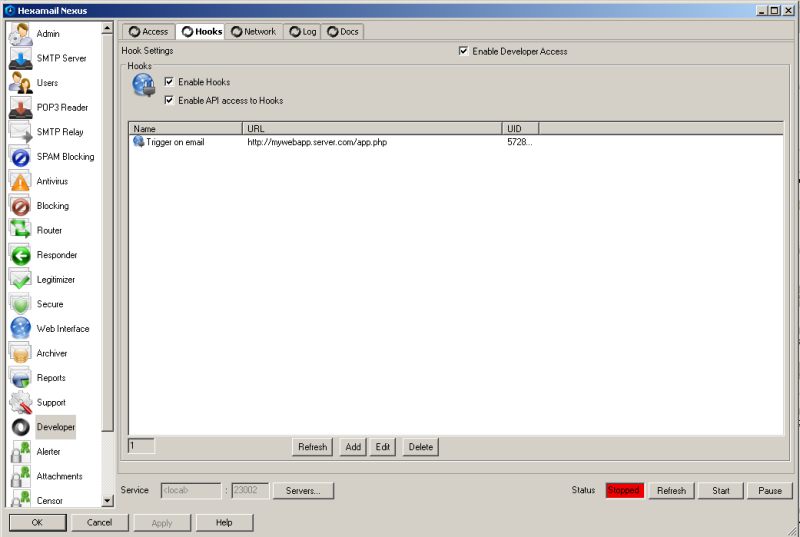
Configuring webhooks
  • Press Add... to add a new webhook
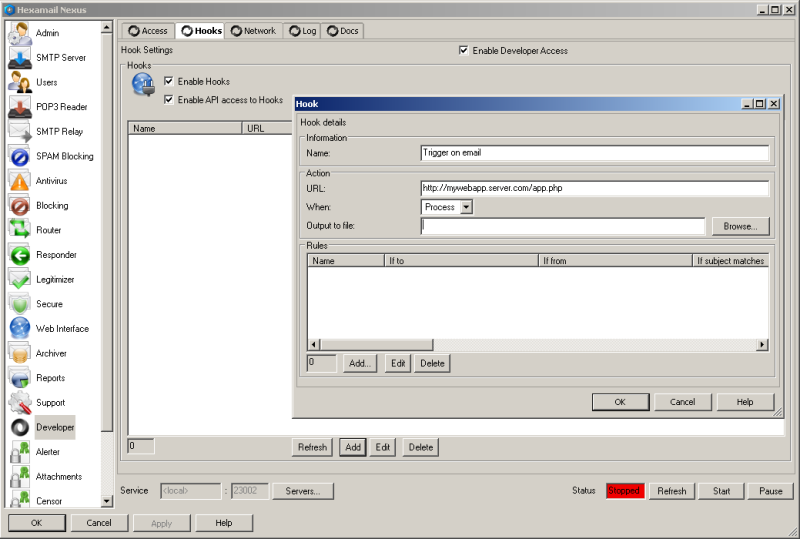
  • Configuring a new webhook
    Configuring a new webhook
  • Specify a name and URL for your webhook. Currently this will trigger on every email processed. We will add some rules to make it only trigger on specific email:
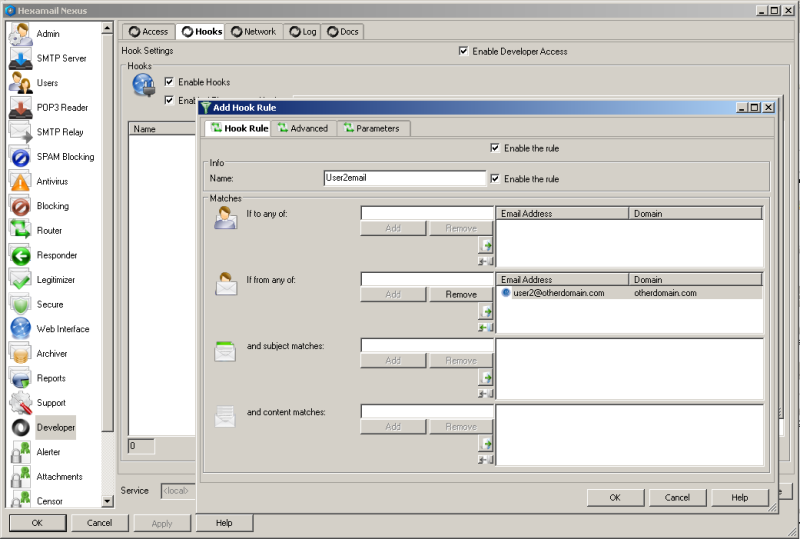
  • Configuring a webhook rule
    Configuring a webhook rule
  • Press Add to add rules to your webhook. Each rule ANDs the various restrictions but any rule can be matched to trigger the webhook. In this way you can have AND and OR clauses on your webhook. In this example we simply trigger on a specific email address in the From field of the email. You can trigger on multiple addresses or use wildcards like * (to match multiple characters) and ? to match any single character.
  • Once done press OK to exit the rule, and OK to exit the hook and then remember to press APPLY once all your rules and hooks are added to send the new configuration to the server
  • 4

    How Hexamail Can Help

    Hexamail Nexus provides a powerful email webhook and API system that lets you trigger HTTP callbacks whenever email matching your defined rules is processed. You can filter webhooks by sender, recipient, subject or any combination, and receive the full email data as a JSON payload at your endpoint. This makes it straightforward to integrate email processing into your own applications, CRM systems or automation workflows.