Best Antispam for Exchange 2016 – Setup Guide

Guides Best Antispam for Exchange 2016 – Setup Guide · 6 min read 8 sections
1

Exchange 2016 Antispam

Exchange 2016 built-in antispam features are difficult to manage, configure and monitor.
Hexamail Guard adds better reporting, logging and control of all Antispam filtering for Exchange 2016. In addition it adds extra layers of spam blocking functionality including:

  • - Bayesian content matching for detecting text spam
  • - Intelligent image matching for blocking image based spam
  • - Multiple DNSBL based real time block lists
  • - DKIM verification and DMARC verification
  • - SPF verification
  • - Built in antivirus for preventing infected documents and malware

Hexamail also offers unparalleled spam quarantine management

This guide will help you install and setup Hexamail Guard as your Antispam gateway for Exchange 2016.

2

Preparing

You will need:

  • - a computer with plenty of disk space (>2GB) for storing email
  • - a 64bit or 32bit Windows operating system (Anything over Windows XP is still supported!)
  • - a permanent/reliable connection to the Internet
  • - an email account on a mail server or email provider such as Gmail, Yahoo, Hotmail, Livemail, Office365 etc
  • - [Optional] an online calendar account such as Office 365, Google Calendar, CALDAV, Memotoo, Fruux etc
  • - [Optional] an online contacts account such as Google Contacts, CARDDAV, Memotoo, Fruux etc

3

Prerequisites

You will need:

  • - Administrator access or access allowing installation of software onto your computer

4

Installing

Next you need to download the required software and copy it to your chosen computer.

  • 1) Download Hexamail POP3 Downloader and save the installer exe file and license on the computer
  • 2) Run the hexamailpop3downloadersetupN.N.N.NNN.exe file by double clicking on it. if you are on a 64bit system you should download the 64bit version called hexamailpop3downloadersetupN.N.N.NNN_64.exe
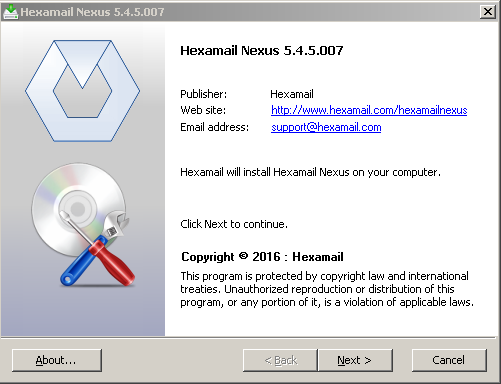
The Installer copies files and sets up services
  • 3) If prompted (64bit) you should install both the Administration console and Windows service
  • 4) You can choose the installation folder at this point
  • 5) The installer copies the necessary files and creates the Windows app
  • 6) Once it has finished installing files it will automatically open the configuration wizard and you can begin setting up Hexamail POP3 Downloader
  • The setup wizard shows the product logo
    The setup wizard shows the product logo
    5

    Configuring Using the Setup Wizard

    Now you can begin configuring Hexamail POP3 Downloader. After some initial steps you can use the Windows admin to configure the rest of the settings

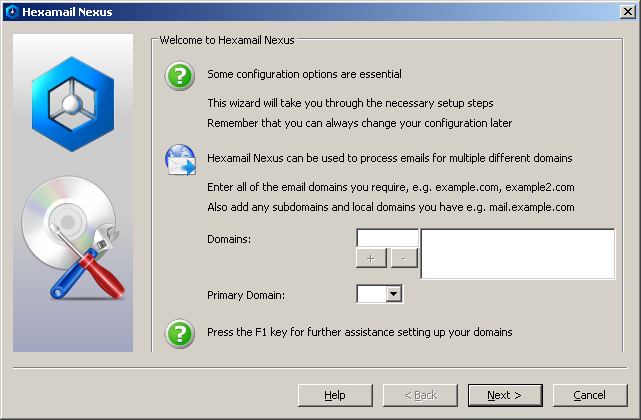
    • Specify the domains that need to be routed to your mail server. For example if your mailboxes are user1
    Configuring internal domains
    Configuring internal domains
    if(connector=="smtpproxy") {
  • Specify the administrator email addresses. Alerts from Hexamail POP3 Downloader are sent to all addresses on this list and the first entry is used as the sender of the alerts.
  • Configuring Administrator Email Addresses
    Configuring Administrator Email Addresses
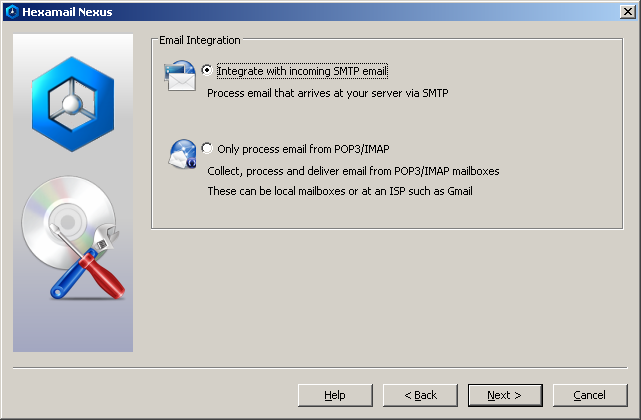
  • Specify how you wish to process email. If you want to process SMTP email as it arrives at your organization choose SMTP. If you wish to download email using POP3 and IMAP, process it and send it to your mail server specify POP3/IMAP
  • Configuring Email Integration
    Configuring Email Integration
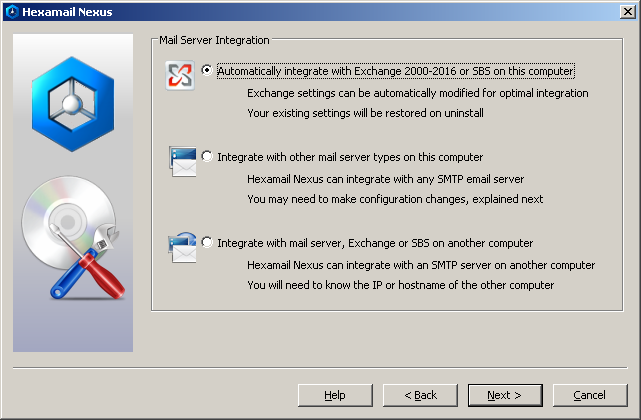
  • Configure where your email server is and what type. Hexamail can automatically reconfigure Exchange if it is on the same machine as Hexamail or integrate with any SMTP server
  • Configuring Email Server Integration
    Configuring Email Server Integration
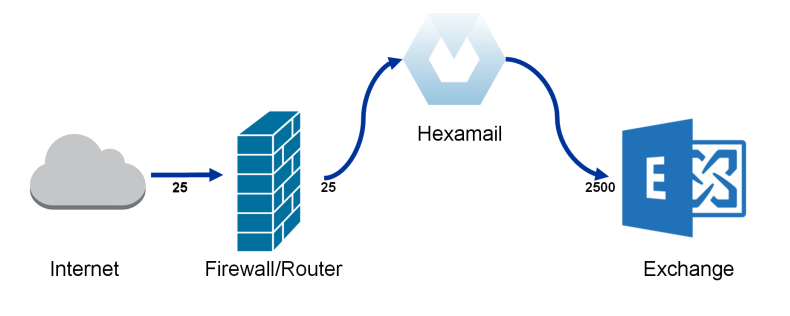
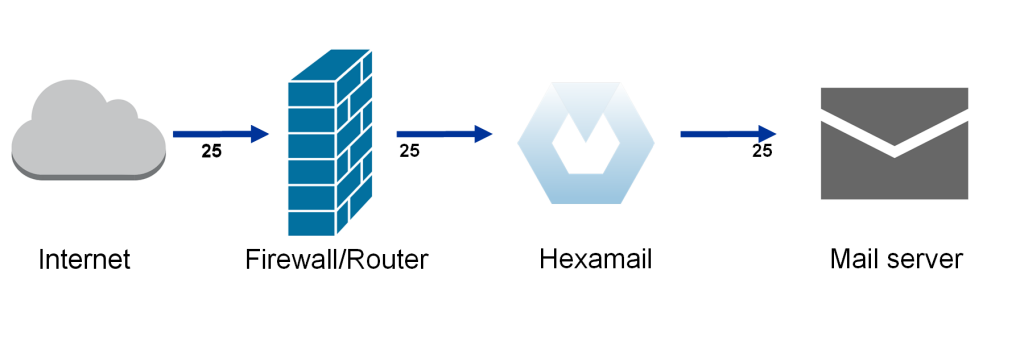
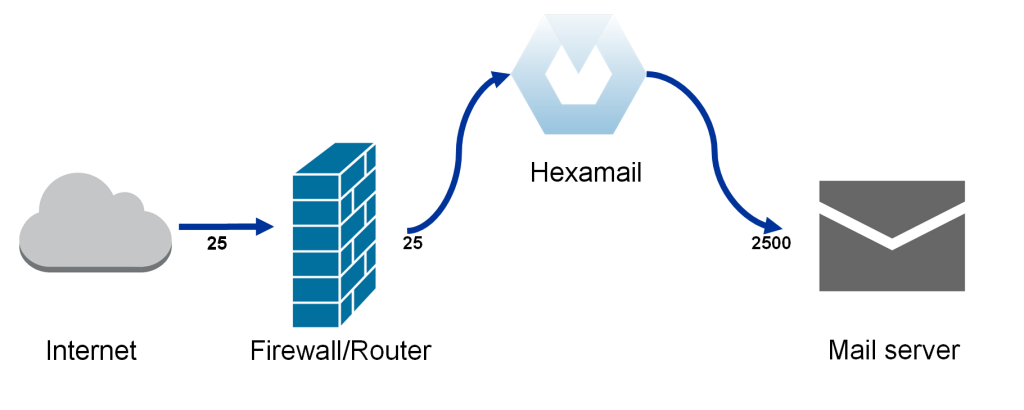
  • Automatic reconfiguration of Exchange if it is on the same machine as Hexamail will try to create a new receive connector called "Hexamail Inbound" on port 2500. Hexamail will disable the existing Default and Internet receive connectors in order that email can flow to Hexamail on port 25 and then be processed/filtered and then sent on to the new receive connector on port 2500. In some configurations of Exchange this procedure may encounter difficulties, and Hexamail will alert you to this and save a powershell script required for the integration which you can run manually from an Exchange Powershell console. In any case the diagram shows the desired final setup configuration.
  • Inbound mailflow with Exchange Server Integration
    Inbound mailflow with Exchange Server Integration
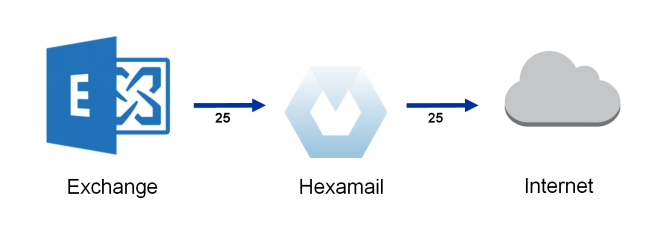
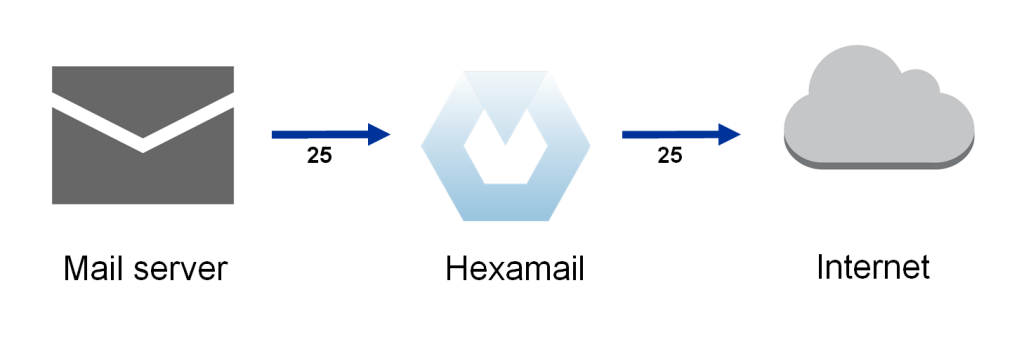
  • An outbound send connector is also created in Exchange called "Hexamail Outbound" and this sends outbound email back to Hexamail for outbound processing such as automatic allow-listing, antivirus filtering and adding disclaimers
  • Outbound email flow with Hexamail integrated
    Outbound email flow with Hexamail integrated
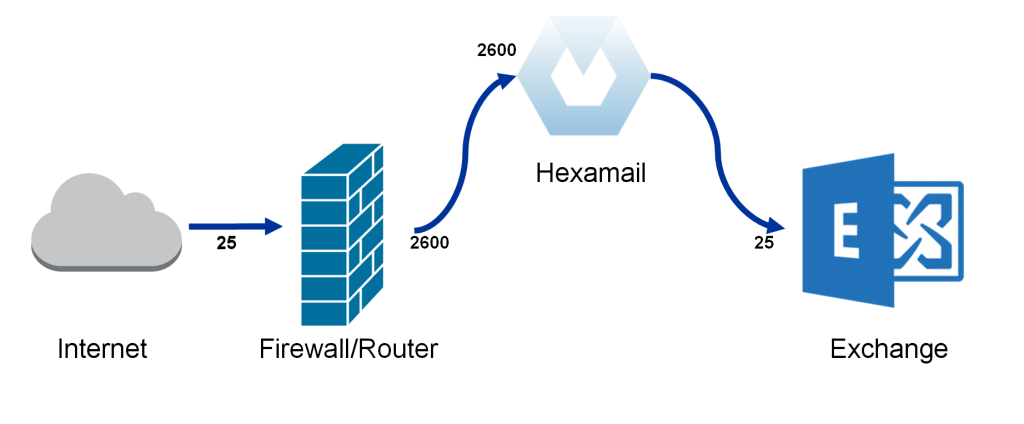
  • If for any reason the default setup flow shown above is not desirable or does not work for you then you can also setup Hexamail as shown in the next diagram. This allows Hexamail to coexist on the Exchange server but does not change any existing connectors and won't disrupt any existing 3rd party apps that are trying to send email via Exchange. Simply install Hexamail, skip the Exchange integration and then change the Hexamail SMTP Server/Network port to 2600 and press apply. Then change your firewall or router rule to route incoming SMTP (TCP port 25) traffic to the Hexamail machine on port 2600
  • Integrating on the same machine as Exchange using a firewall/router redirection
    Integrating on the same machine as Exchange using a firewall/router redirection
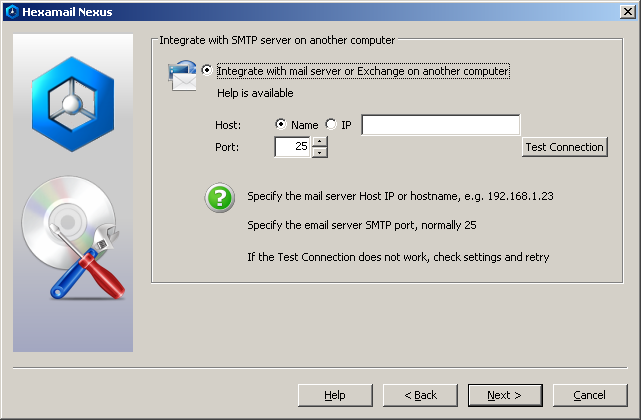
  • If Hexamail is on a machine other than your Exchange server or mail server you can configure your email server settings. This is the IP address and port of your mail server. Use the Test Connection button to verify the settings
  • Configuring SMTP Server Integration
    Configuring SMTP Server Integration
    Configuring Mail server integration with Hexamail on a separate server
    Configuring Mail server integration with Hexamail on a separate server
    Configuring Mail server integration with Hexamail on the same server
    Configuring Mail server integration with Hexamail on the same server
    Configuring Mail server outbound mail flow
    Configuring Mail server outbound mail flow
    }
  • Configure your outbound server settings. Hexamail needs to send email to recipients that do not have local mailboxes on your mail server. For example it may need to send a notification or alert that there was a problem delivering email to a particular local mailbox. To send these email Hexamail needs to know the hostname or IP address and port of your smarthost. If your ISP requires you send email through their server then you need to specify that server here. If you wish to send directly to other mail servers of the external recipients then leave this blank or uncheck the checkbox. Use the Test Connection button to verify the settings
  • Configuring Smarthost Integration
    Configuring Smarthost Integration
  • Other settings such as authentication, rate limits etc can all be configured using the Administration console which will open when you click Finish on the setup wizard.
  • 6

    Configuring Hexamail POP3 Downloader

    You can configure using a remote Windows administration GUI, using the Web Administration or by editing the configuration file directly.

    The configuration settings are the same as in the Windows Administration and you can use the same help file to read about the various options in the Administration sections here: Hexamail POP3 Downloader Help

    In the WebAdmin press the help button on the page you are using to see help relating to that specific page of settings.
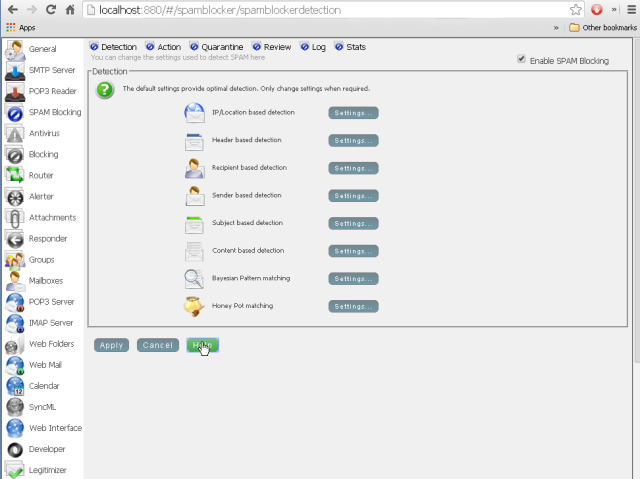
    Web Admin Spam Blocker Help Button
    Web Admin Spam Blocker Help Button

    Alternatively you can configure Hexamail settings directly in the configuration file as per the instructions in the Configuration section here: Hexamail POP3 Downloader Help

    7

    Managing

    Once installed and initially configured, Hexamail is very easy to manage with clearly laid out settings, log files and email statistics/reporting. Just click on any section to open that section of the included administration app and click on a page to edit the settings for a given part of a module.

    Hexamail also provide a mail server with built in antispam capabilities Hexamail Server.

    8

    How Hexamail Can Help

    Hexamail Guard operates as an antispam gateway in front of Exchange 2016, adding Bayesian content filtering, intelligent image spam analysis, multiple DNSBL real-time block lists, DKIM/SPF/DMARC verification, and built-in antivirus — all with detailed logging and reporting that Exchange's native tools lack. Installation takes minutes and no changes to your existing Exchange configuration are required beyond redirecting inbound SMTP to Hexamail Guard.