This is a guide to setting up your own email archiving server on a LINUX machine.
Let's break the guide into some easy steps:
You will need:
- - a computer with plenty of disk space (>2GB) for storing email queues, log files, statistics and email
- - a 64bit LINUX operating system (for example Centos 5 or 6, Ubuntu, RedHat etc) (we can supply 32bit builds on request)
- - a permanent/reliable connection to the Internet
You will need:
- OpenSSL 1.0.2. Check your version with openssl version
- Install Openssl with yum install openssl
- Update Openssl with yum update openssl
- Root access or access allowing use of ports below 1024 for default SMTP etc
Next you need to download the required software and copy it to your chosen computer.
- 1) Download Hexamail Vault and save the tar.gz file and license on the computer
- 2) Unpack the hexamailvault.tar.gz file using the command
- 3) This creates a subfolder called hexamailvault/ in which Hexamail will run. You can move this folder wherever you wish at this point
- 4) Switch to the extracted folder
- 5) View the INSTALL text file for up to date instructions on your version of the software
Now you can begin configuring Hexamail Vault. After some initial steps you can use the webadmin to configure the rest of the settings
- 1) Copy the file hexamailvault.cfg.initial to hexamailvault.cfg
- 2) Edit the file hexamailvault.cfg
- 3) Fill in all the required settings listed in the file
Now you can run Hexamail for the first time
- 1) Switch to the root user. This is required to allow Hexamail to use the ports required for email (port numbers under 1024)
- 2) Run the script ./start.sh provided with the software to start the Hexamail service
- 3) Verify there are no problems with the startup by checking the Hexamail Vault log. It should eventually say Starting processing...
- 4) You are now ready to connect to the webadmin and configure the other settings. To do this open a browser to http://yourservername:880/ If it is on this server use this link webadmin
To get Hexamail to run on start up or as a daemon (systemd service) you need to do the following.
First edit the startup script start.sh to contain the folder Hexamail is installed in by changing the following line:
/etc/systemd/system/hexamailvault.service
Edit this file and make the contents as follows:
You can now start and stop Hexamail using the command(s):
You can configure using a remote Windows administration gui, using the Web Administration or by editing the configuration file directly.
The configuration settings are now the same as in the Windows Administration and you can use the same help file to read about the various options in the Administration sections here: Hexamail Vault Help
In the WebAdmin press the help button on the page you are using to see help relating to that specific page of settings.
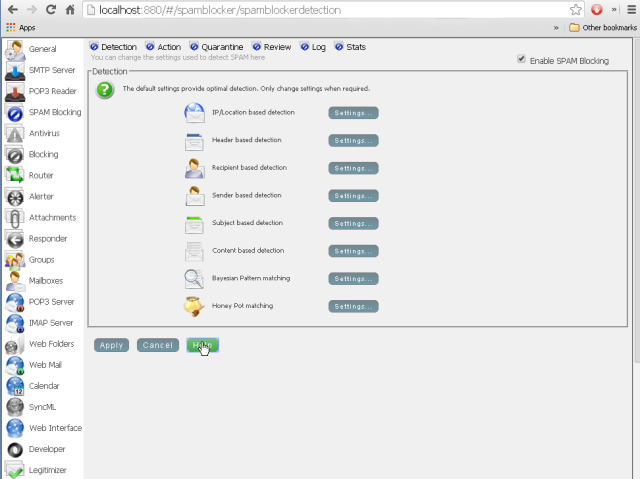
Alternatively you can configure most of Hexamail using the configuration file directly using the instructions in the Configuration section here: Hexamail Vault Help
Hexamail products including Hexamail Guard, Hexamail Server and Hexamail Nexus all run on 64-bit Linux systems including CentOS, Ubuntu and RedHat. Installation is a straightforward tar.gz extraction with a simple startup script. The same Windows-based remote administration GUI can be used to manage your Linux installation remotely, so there is no need to edit configuration files manually.