This is a guide to setting up Remote Administration for Hexamail POP3 Downloader on a Windows machine.
Let's break the guide into some easy steps:
You will need:
- - a computer with plenty some disk space (>500MB) for storing configuration, log files, and statistics
- - a 64bit or 32bit Windows operating system (Anything over Windows 2k is still supported!)
- - a permanent/reliable connection to the Internet
You will need:
- - Administrator access or access allowing installation software
Next you need to download the required software and copy it to your chosen computer.
- 1) Download the remote admin for your product hexamailpop3downloaderadmin.exe or hexamailpop3downloaderadmin_64.exe and save the installer exe file and your license on the computer
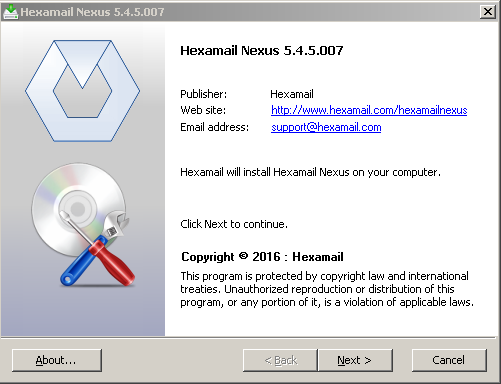
- 2) Run the hexamailpop3downloaderadmin.exe (or hexamailpop3downloaderadmin_64.exe) file by double clicking on it.
Now you need to allow the Remote Administration interface to access your server
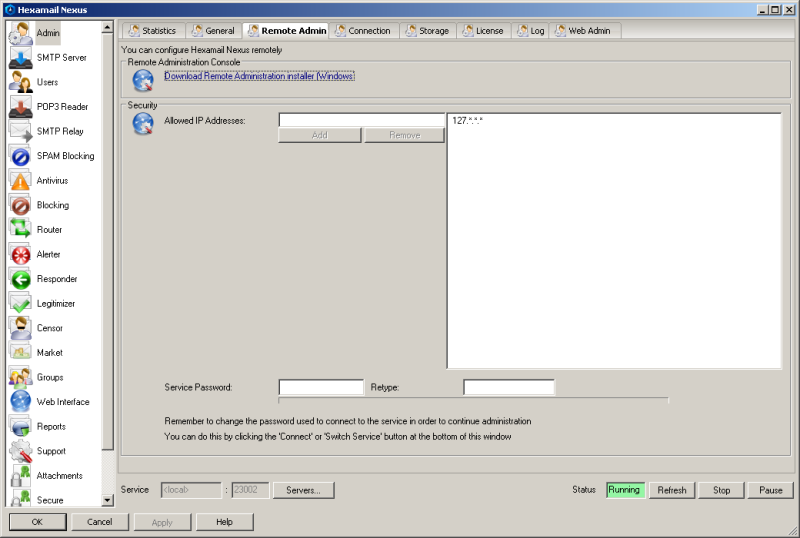
- On the SERVER open up the local Administration GUI and go to the Remote Admin page
You can use a Windows remote administration GUI to access your Linux server
- On the SERVER run the ./stop.sh script to stop the service
- On the SERVER open up the local configuration file hexamailpop3downloader.cfg
- Make the following changes, adding in any IP address or range you wish to allow to configure your server
- On the SERVER run the ./start.sh script to restart the service
- Check your firewall on the SERVER or any firewall/router between the server and the remote administration console allows port echo 23004; for TCP requests and directs them to the SERVER machine
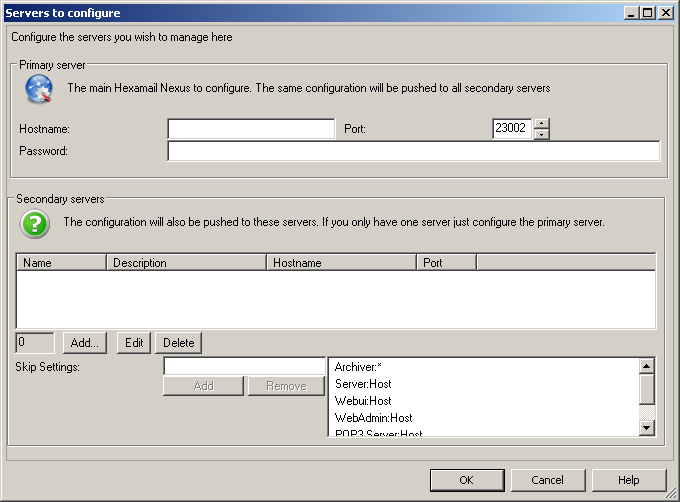
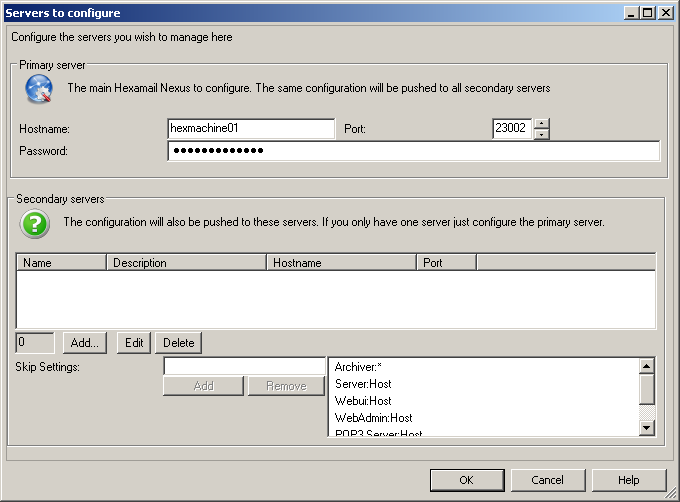
- On the REMOTE machine click Servers... at the bottom of the page and specify the IP address of the SERVER and same password in the box that pops open
All Hexamail products support remote administration via a Windows GUI client or a built-in web administration interface, making it easy to manage your email server from anywhere. The same administration interface works for both Windows and Linux installations, so you can manage a Linux server from a Windows workstation without needing SSH access or command-line configuration.