This is a guide to setting up automatic secure email on your server
Let's break the guide into some easy steps:
For this step please see one of the relevant guides:
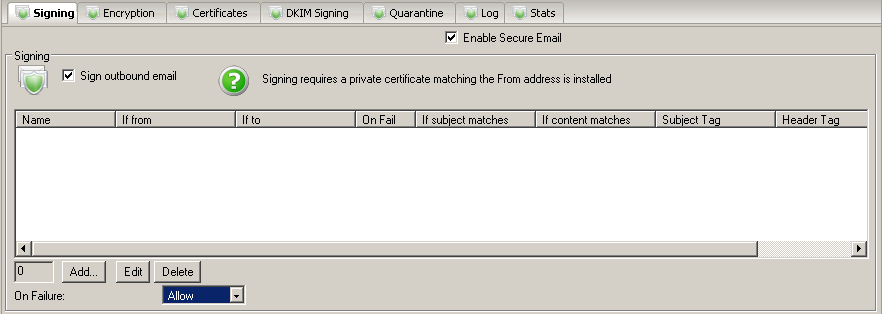
- Decide which email you wish to sign and configure your signing rules. By default all outbound email will be signed if an appropriate certificate is installed. To sign email you require a private key in your certificate store
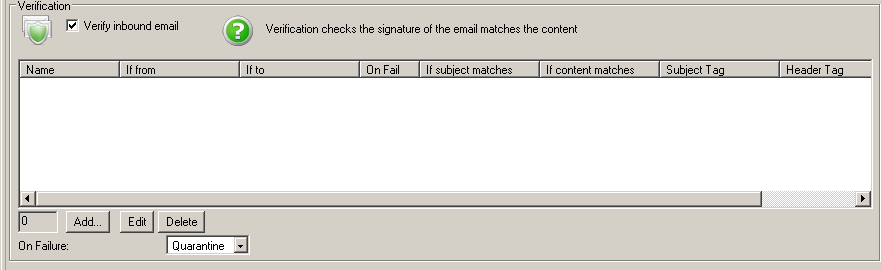
- Decide which email you wish to verify signatures for and configure your verification rules. By default all inbound email will be verified if signed. Verified email certificates will be added as public keys to your certificate store
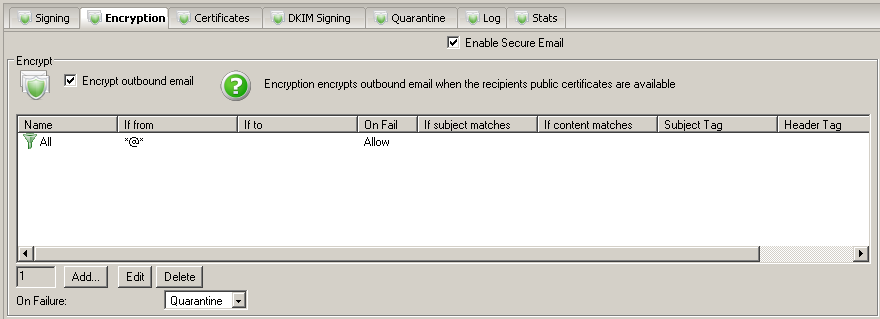
- Decide which email you wish to encrypt and configure your encryption rules. By default all outbound email will be encrypted if an appropriate certificate is installed. To encrypt email you require a public key for the recipient in your certificate store
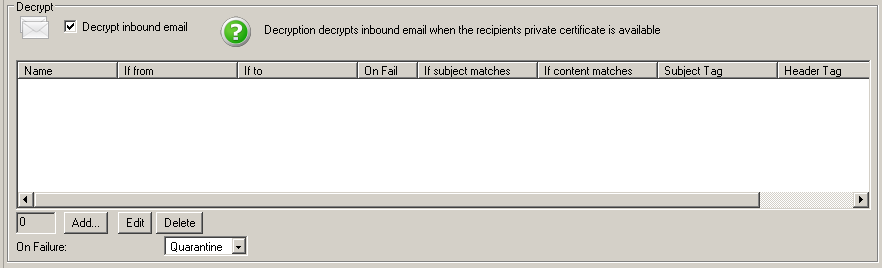
- Decide which email you wish to decrypt on the server and configure your decryption rules. By default all inbound email will be decrypted if encrypted and you have the necessary private key in your certificate store
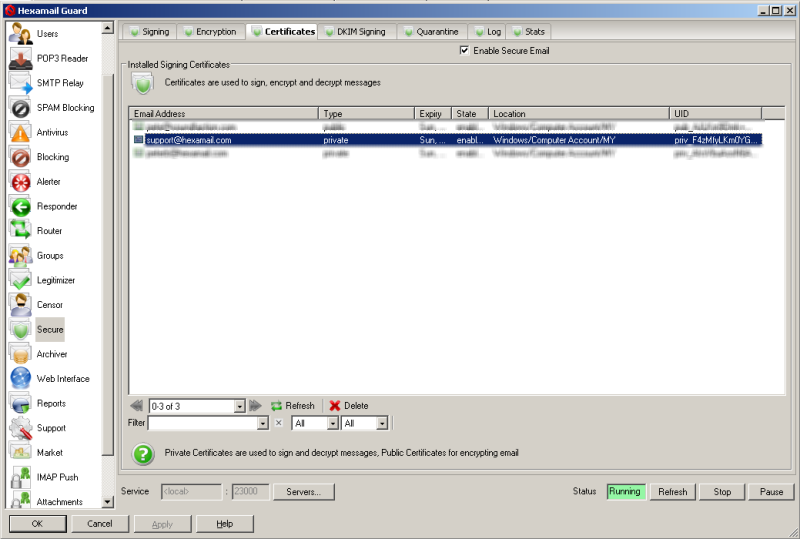
- The Hexamail certificate store shows all the email encryption certificates in the Windows Certificates Store (and also any certificate files on disk under data/certs/in and data/certs/trusted)
- When you receive a signed email and it matches a verification rule then the signing certificate (public key) is automatically added to your certificates store and used to encrypt email sent back to that email address
- In order to sign and decrypt email on your server you will need to add private key certificates to the certificate store.
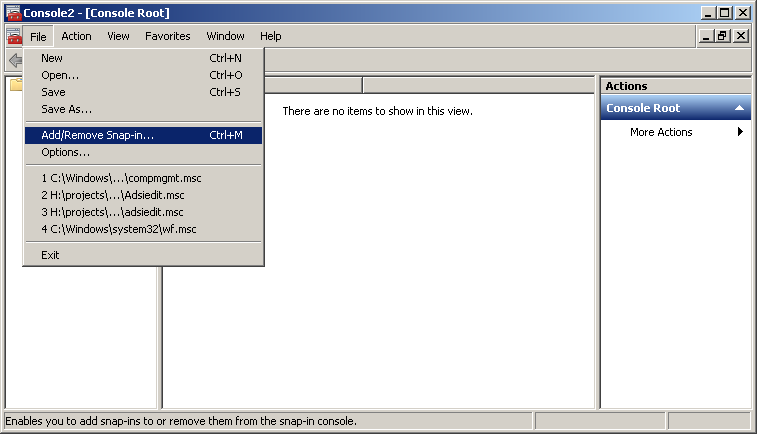
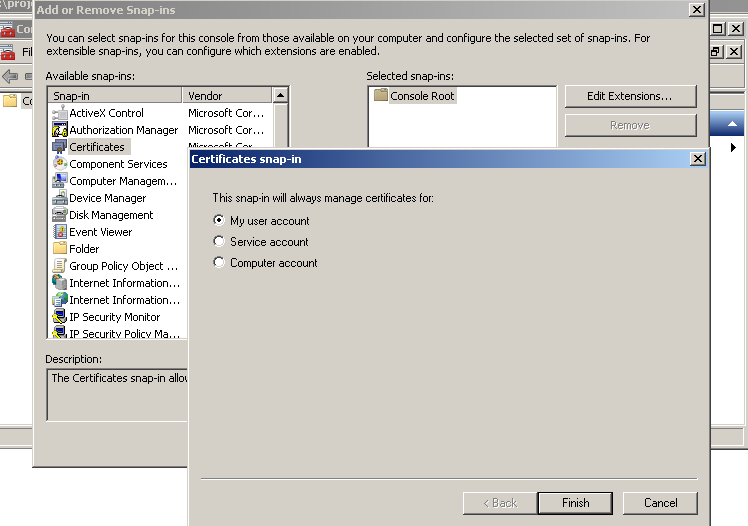
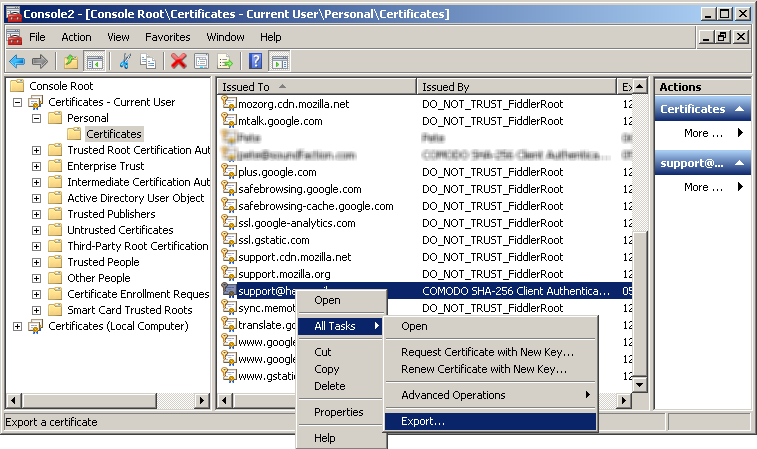
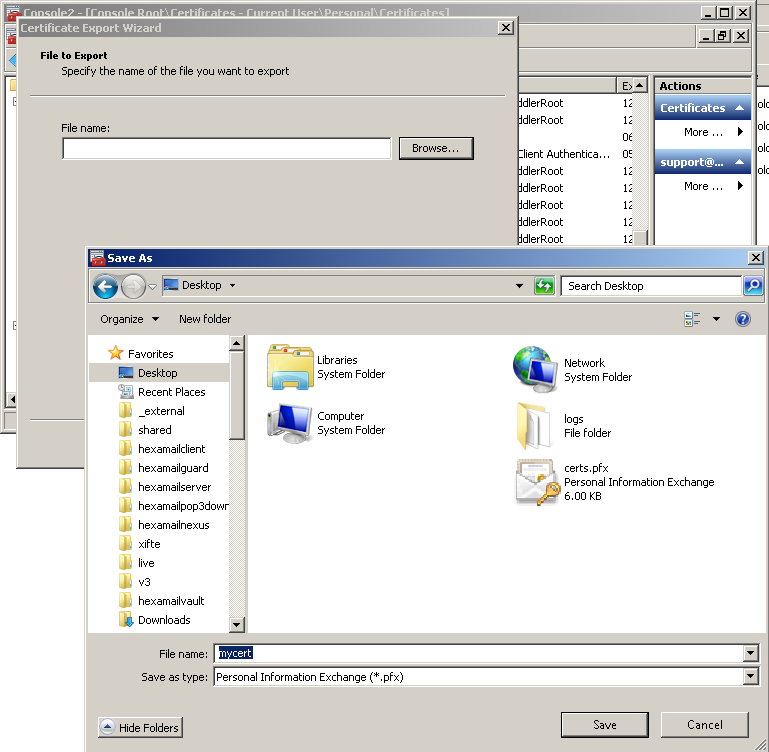
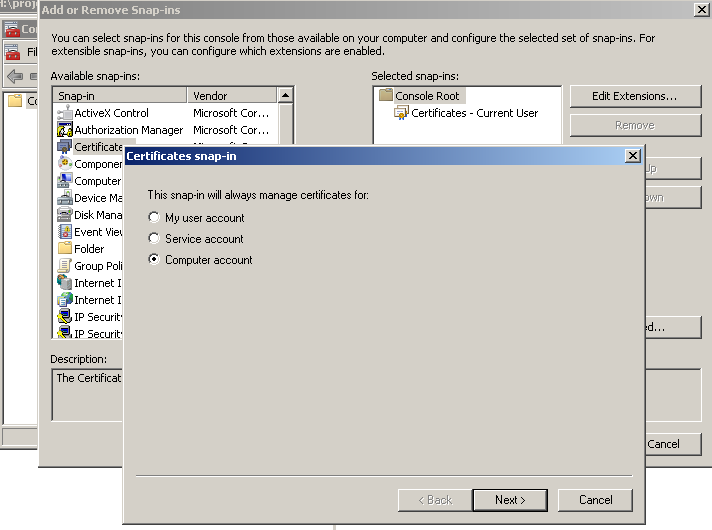
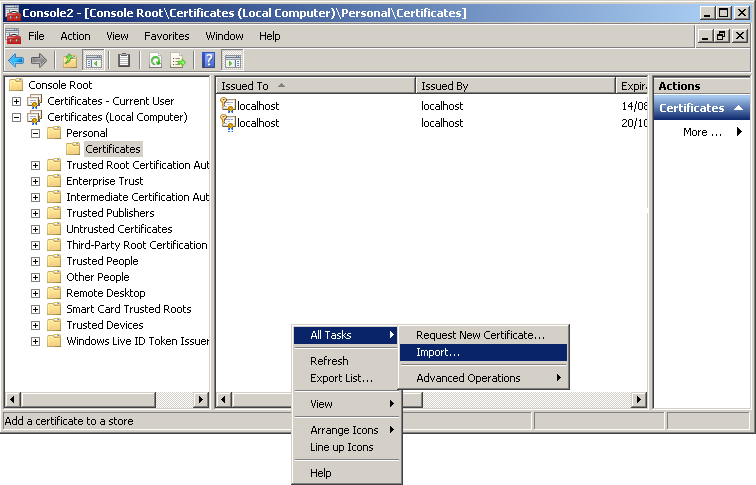
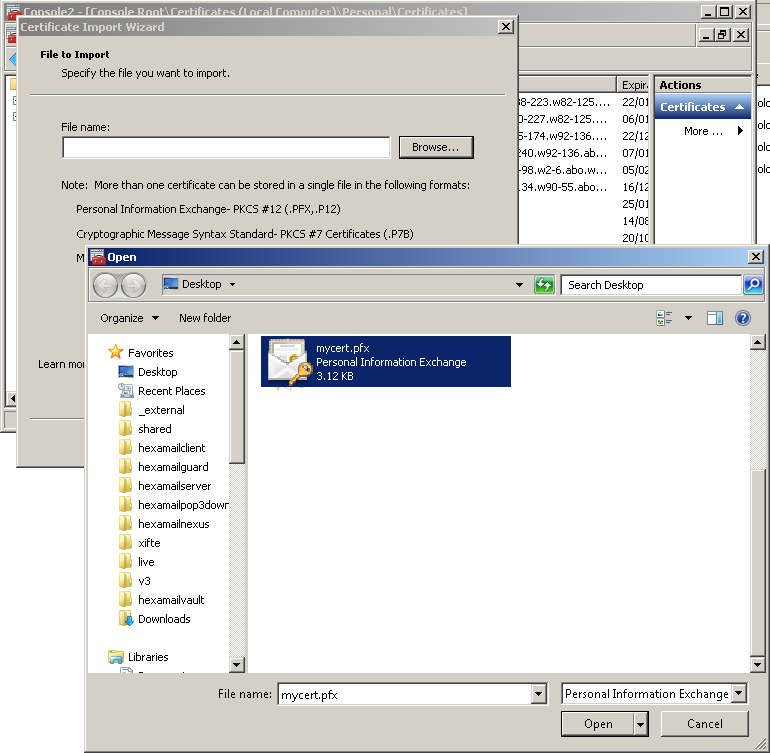
- In order to add new certificates to the store you need to use the Windows Management Console with the certificates snapin to import certificates into the Local Computer store. If you don't yet have a certificate for an email address you can visit a site such as InstantSSL to get a free email encryption certificate delivered to an email account. Once you have registered you will be sent an email with a link in it to allow you to claim your certificate. Click the link (on the same computer you used to request the certificate) and that will install the certificate on the same computer you requested the certificate from. Once installed open Microsoft Management Console by doing Start-> Run->mmc and pressing enter.
Hexamail Guard and Hexamail Server implement a comprehensive suite of email security features including TLS/SSL encryption for all SMTP connections, DKIM signing of outbound email, SPF and DMARC verification of inbound email, and certificate management. These features protect your email from interception, spoofing and phishing, helping you meet regulatory security requirements.