Setting Up STARTTLS for Encrypted Email – Step-by-Step Guide

Guides Setting Up STARTTLS for Encrypted Email – Step-by-Step Guide · 2 min read 7 sections
1

How to setup STARTTLS support on your server

This is a guide to setting up STARTTLS support on your server

Let's break the guide into some easy steps:

2

Installation

For this step please see one of the relevant guides:

3

Obtain a server SSL certificate

  • First you will need a server email certificate for your mail server. You can obtain one from any server SSL certificate provider:
  • RapidSSL
  • Comodo
  • Thawte

Follow their instructions to purchase and install the certificate on your machine. Hexamail should then see it in the certificates dropdown list when you configure SSL

4

Enabling SSL on the server

  • Next go to SMTP Server/Network/ and enable the SSL port and leave it on 465 (default)
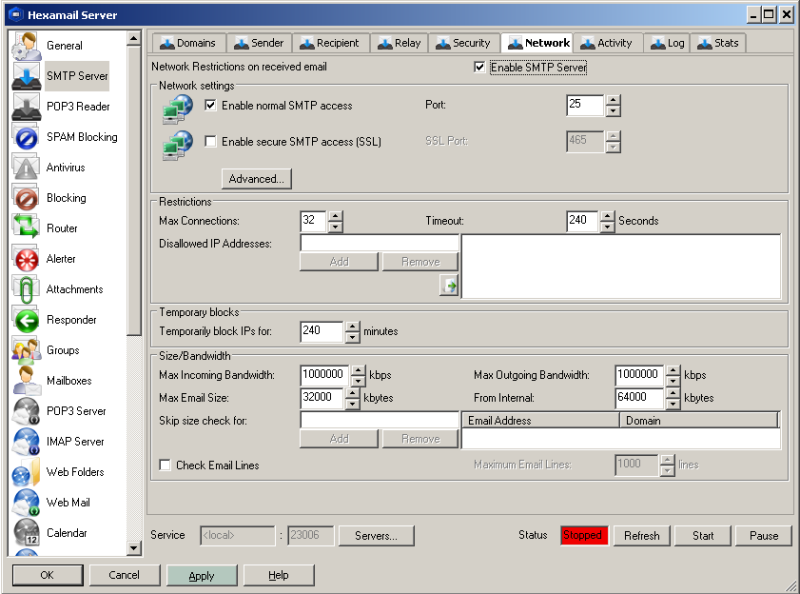
Enable SSL support
Enable SSL support
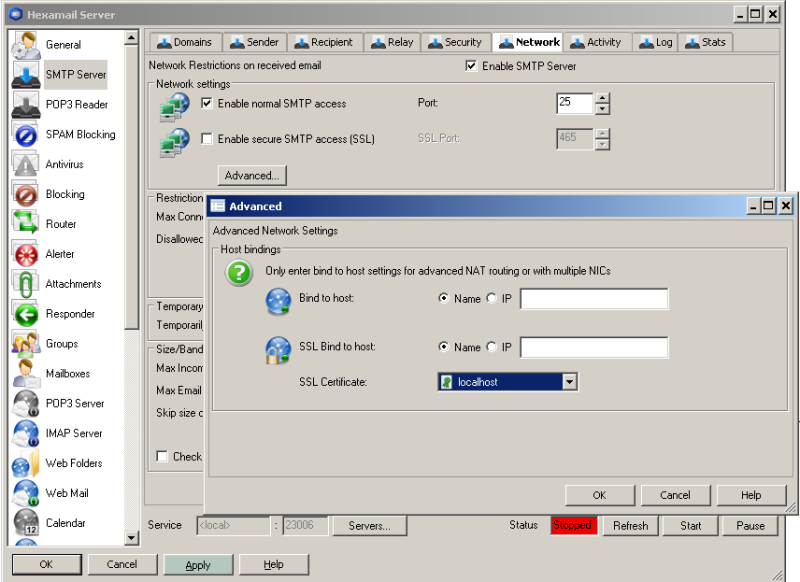
  • Click Advanced and choose the new server certificate if it is shown. If it is not shown please see Managing certificates
  • Choose the correct certificate
    Choose the correct certificate
    5

    Enabling STARTTLS on the server

    • Next go to SMTP Sevrer/Security and ensure the STARTTLS checkbox is enabled
    • Press APPLY and check the SMTP Server/Log for any warnings or errors
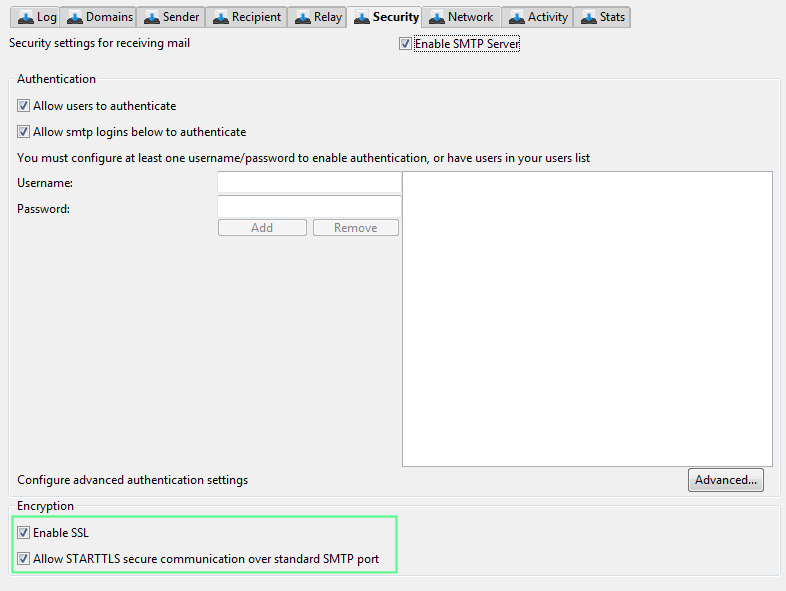
    Enable STARTTLS support
    Enable STARTTLS support
    6

    Managing Server Certificates (Windows)

    • In order to see new certificates in the SSL certificate dropdown list you need to use the Windows Management Console with the certificates snapin to import certificates into the Local Computer store where Hexamail, as a Windows service, can access them. If you don't yet have a server SSL certificate you need to obtain one. Once the certificate is installed open Microsoft Management Console by doing Start-> Run->mmc and pressing enter.
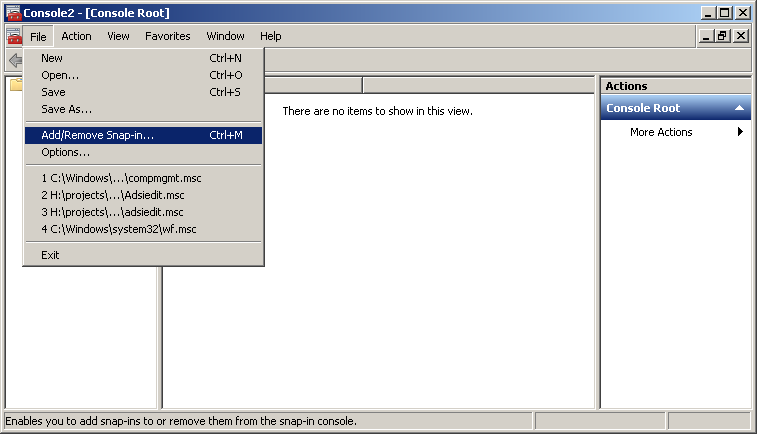
    Microsoft Management Console
    Microsoft Management Console
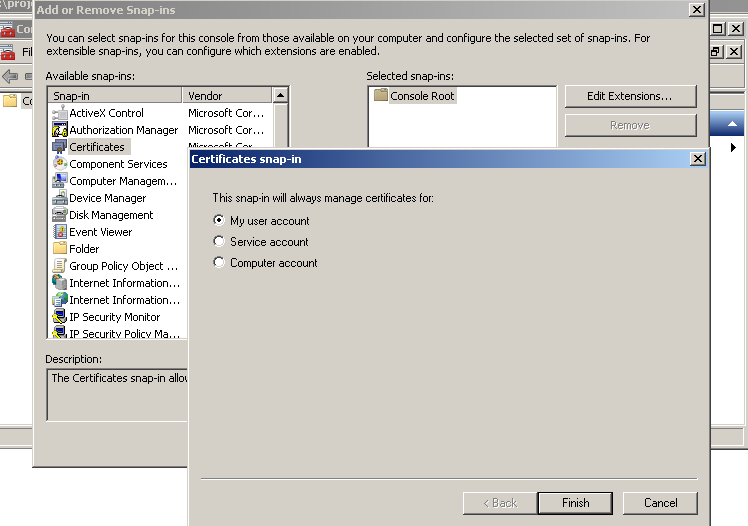
  • Choose File: Add/Remove Snap-in... and add the Certificates snapin for Current User
  • Add User Certificates Store
    Add User Certificates Store
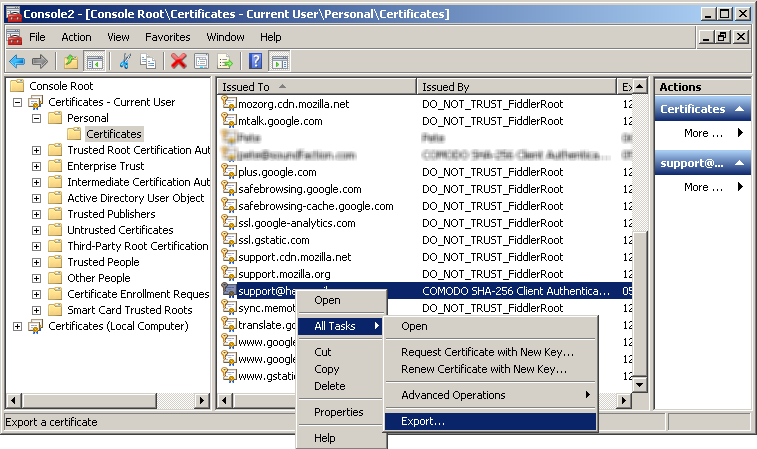
  • Locate the email encryption certificate you installed, right click it and do All Tasks->Export... This will open the certificate export wizard
  • Export the user certificate
    Export the user certificate
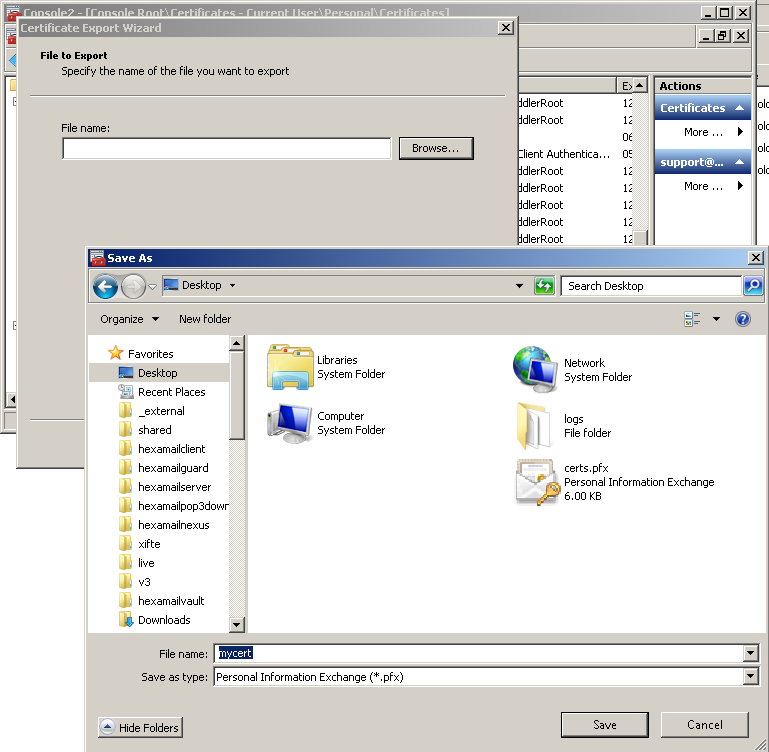
  • Choose to export the private key, and to Export all extended properties. Then choose a password: this is used to lock the exported file and you will need it to reimport on the server. Choose a useful filename and export the certificate to your desktop or a server folder
  • The Export Certificate Wizard
    The Export Certificate Wizard
  • On the server open MMC
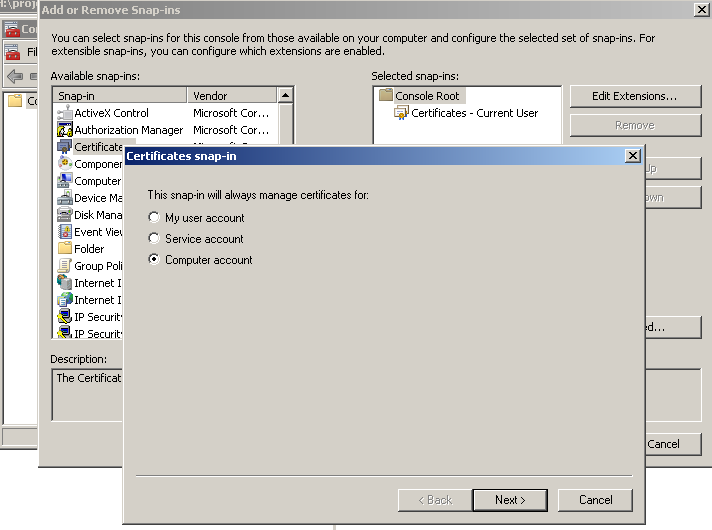
  • Choose File: Add/Remove Snap-in... and add the Certificates snapin for Local Computer
  • Add Local Computer Certificates Store
    Add Local Computer Certificates Store
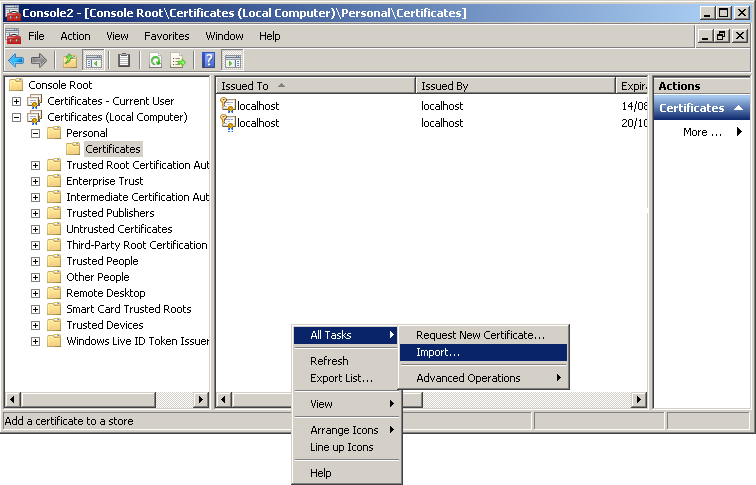
  • Right click inside the Personal/Certificates page and choose All tasks->Import...
  • Import the Certificate
    Import the Certificate
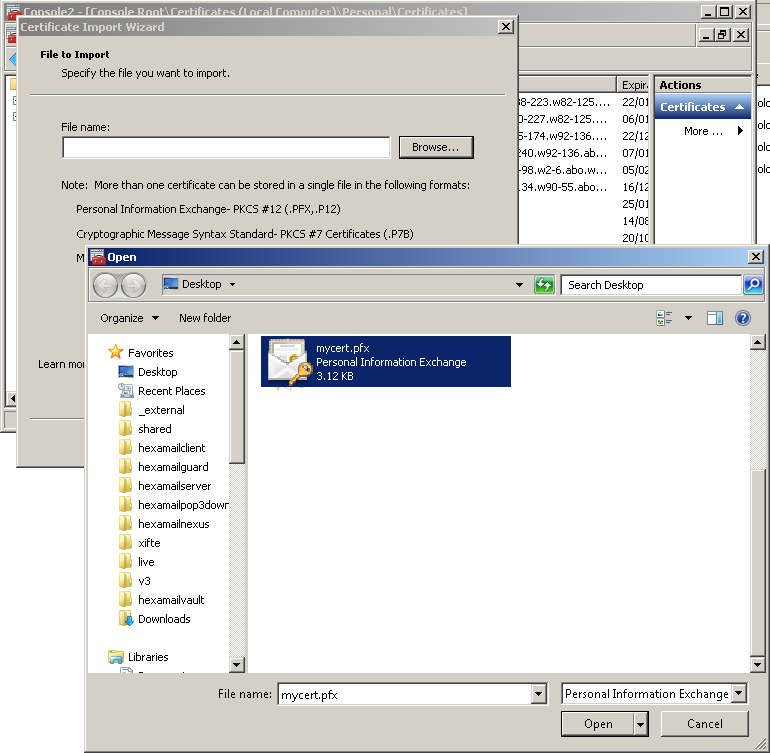
  • Browse for the file you saved previously. You need to choose Personal Information Exchange as the file type to see it.
  • Importing the Certificate
    Importing the Certificate
  • Enter the password you used to export the certificate and check the Include all extended properties checkbox
  • Click Next and Finish and the certificate should appear in the Local Computer Personal/Certificates store in MMC
  • 7

    How Hexamail Can Help

    Hexamail Guard, Hexamail Server and Hexamail Nexus all support STARTTLS for opportunistic TLS encryption on SMTP connections, as well as dedicated SSL ports (465) for always-encrypted connections. Enabling STARTTLS requires only a server SSL certificate and a single configuration change in the administration interface, making it one of the quickest improvements you can make to your email security posture.