This is a guide to setting up your own email connector on a Windows machine.
Let's break the guide into some easy steps:
You will need:
- - a computer with plenty of disk space (>2GB) for storing email queues, log files, statistics and email
- - a 64bit or 32bit Windows operating system (Anything over Windows 2k is still supported!)
- - a permanent/reliable connection to the Internet
You will need:
- - Administrator access or access allowing installation of services and configuration of any local firewall
Next you need to download the required software and copy it to your chosen computer.
- 1) Download Hexamail POP3 Downloader and save the installer exe file and license on the computer
- 2) Run the hexamailpop3downloadersetupN.N.N.NNN.exe file by double clicking on it. if you are on a 64bit system you should download the 64bit version called hexamailpop3downloadersetupN.N.N.NNN_64.exe


You can configure using a remote Windows administration GUI, using the Web Administration or by editing the configuration file directly.
The configuration settings are the same as in the Windows Administration and you can use the same help file to read about the various options in the Administration sections here: Hexamail POP3 Downloader Help
In the WebAdmin press the help button on the page you are using to see help relating to that specific page of settings.
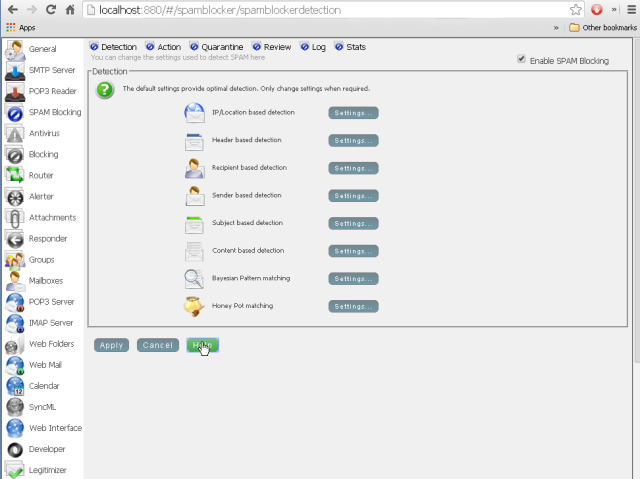
Alternatively you can configure Hexamail settings directly in the configuration file as per the instructions in the Configuration section here: Hexamail POP3 Downloader Help
Hexamail products are designed for straightforward Windows installation: download the installer, run it as Administrator, and the setup wizard guides you through the initial configuration. All Hexamail products run as Windows services for reliable background operation and are manageable through a graphical administration interface or web admin, with no need for command-line configuration.